Logging into Windows domain with eID smart card
This document provides a comprehensive technical overview and step-by-step guidance for system administrators implementing Estonian electronic ID (eID) card authentication within a Windows domain environment.
Version: 26.04/1
Published by: RIA
Version information
| Date | Version | Changes/Notices |
|---|---|---|
| 21.01.2019 | 19.01/1 | Public version, based on software version 18.12. |
| 10.03.2022 | 22.03/1 | Updated version, based on software version eID-22.1.0.1922. — Changed by: Urmas Vanem |
| 14.09.2022 | 22.09/1 | Added description of new requirements from Microsoft for mapping user and eID card certificate. — Changed by: Urmas Vanem |
| 11.12.2023 | 23.12/1 | Removed ESTEID-SK 2015 chain + minor changes. — Changed by: Urmas Vanem |
| 31.10.2025 | 25.10/1 | Added Zetes certificates — Changed by: Raul Kaidro |
| 13.03.2026 | 26.03/1 | Converted to Markdown format — Changed by: Raul Metsma |
| 19.05.2026 | 26.04/1 | Style improvements. — Changed by: Raul Metsma |
- Logging into Windows domain with eID smart card
Background
Since Windows Server 2008 SP2 and Windows Vista SP2 combination it is possible to use Estonian eID cards for Windows domain login. This possibility has been actual since autumn 2008, when the first successful tests were made. This document describes platforms and configurations which enable Windows domain login, achievable using only standard Microsoft and ID-software.
Logging into computer using eID card is currently quite popular in Estonian enterprises. Using a smart card for domain logging has many benefits, like users do not need remember their password and change it regularly, two factor authentication is more secure etc. Creating technical configuration is also not too hard using the guidance you currently read.
Windows domain logging with eID smart card is supported and tested on following platforms:
- Servers: All supported Windows Server versions including Windows Server 2025.
- Clients: All supported Windows operating systems including Windows 11.
Implementation
Configuring ID login requires a set of systemic preparations for both the domain and client computers. In addition, domain user accounts must be linked to eID authentication certificates.
To enable eID card logging into Windows domain following options must be enabled:
- Domain controllers must have a specific certificate to identify themselves, the certificate must also be trusted by clients/computers.
- Domain controllers must trust root and intermediate level certificates from SK ID Solutions (
EE-GovCA2018) and Zetes (EEGovCA2025) eID card chains. - Client computers must have ID-software installed (the recommended version is 26.4.20.8412).
- Client computers must support certificates that do not have a special
Smart Card LogonEKU property and the use of ECC certificates for logging purposes into computers must also be allowed. - In the domain, the authentication certificate of the eID card must be linked to a specific user.
The following chapters describe exact steps to create a working configuration for eID domain logging.
Domain settings
To prepare Windows domain for eID logging, specific policies must be created for domain controllers and client computers. As prerequisite domain controller must have specific certificate (server authentication, smart card logon) to identify itself and allow smart card logon.
Domain controller certificate
As already mentioned, domain controllers need certificates to prove their identity and enable smart card logon for client computers. The most common way to obtain these certificates is to use the local PKI solution. If PKI services have been implemented in Windows domain, it will be easy to assign mandatory certificate to domain controllers. By default, Domain Controller Authentication certificate template, which fulfills all needs for eID logging, can be published for domain controllers. If certificate autoenrollment for domain controllers is enabled (and if certificate template is published in domain of course), then all domain controllers automatically install mandatory certificate. If not, a certificate can be requested manually.
Domain controller certificates can be found from domain controller certificates personal store:

If PKI services are not implemented in the domain, it could be a good idea to change the situation now. It can also be possible to get mandatory certificates from other sources.
Policies
Publishing certificates
To use eID cards and related certificates for domain logging, domain controllers must trust those certificates. Both root and intermediate certificates form eID certificate chains must be trusted and installed into correct certificate containers. Domain controllers must also have access to the OCSP service described in certificates to check the validity of certificates.
To enable domain logging with an eID card, intermediate level certificates (ESTEID2018, ESTEID2025) must be installed in the NTAuthCertificates container of the domain. This is done with the command certutil -dspublish -f 'CERTIFICATE NAME' NTAuthCA. A root-level certificate can also be added to the domain container with the command certutil -dspublish -f 'CERTIFICATE NAME' RootCA.
Certificates can be downloaded from https://www.skidsolutions.eu/resources/certificates/ and https://repository.eidpki.ee/crt/. As of today, the following certificates are required:
- EE-GovCA2018 - trusted root certificate;
- EEGovCA2025 - trusted root certificate;
- ESTEID2018 - intermediate level certificate;
- ESTEID2025 - intermediate level certificate.
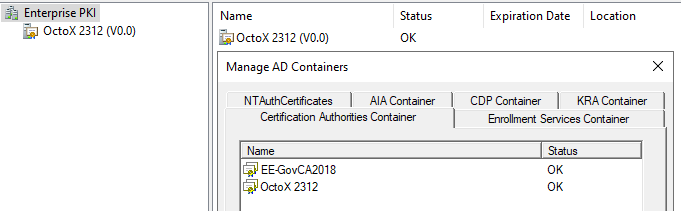
In addition, both SK/Zetes root and intermediate certificates can be published in the domain for domain controllers and/or all other Windows computers or computer groups using group policies.1
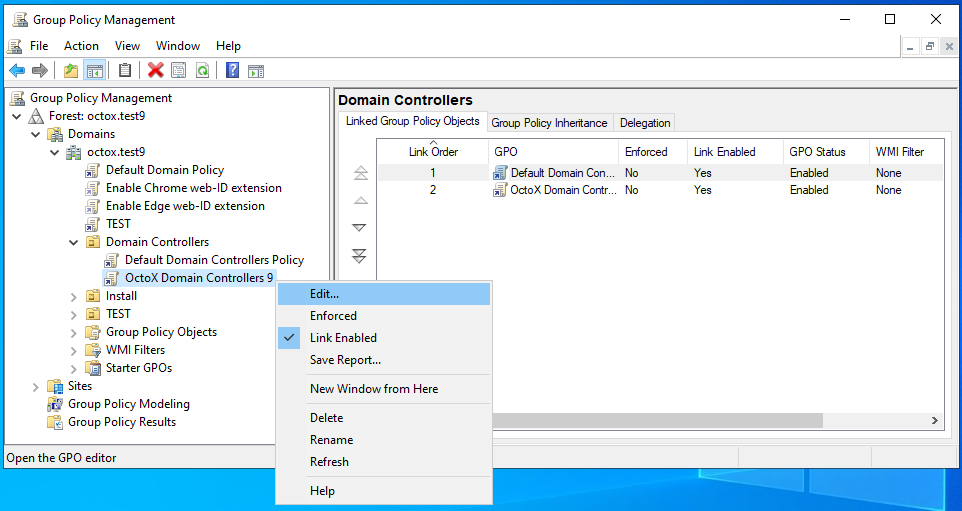
To publish certificates to domain controllers automatically with group policy, it is recommended to modify the Default Domain Controllers or any other OU-level policy for domain controllers. Certificates must be placed into containers according to their type: root certificates into the Trusted Root Certification Authorities container and intermediate certificates into the Intermediate Certification Authorities container.
Follow these steps to publish root and intermediate certificates to domain controllers:
-
Open the Group Policy Management console and select the appropriate GPO, click Edit…:
-
Select folder
Computer Configuration/Policies/Windows Settings/Security Setting/Public Key Policies.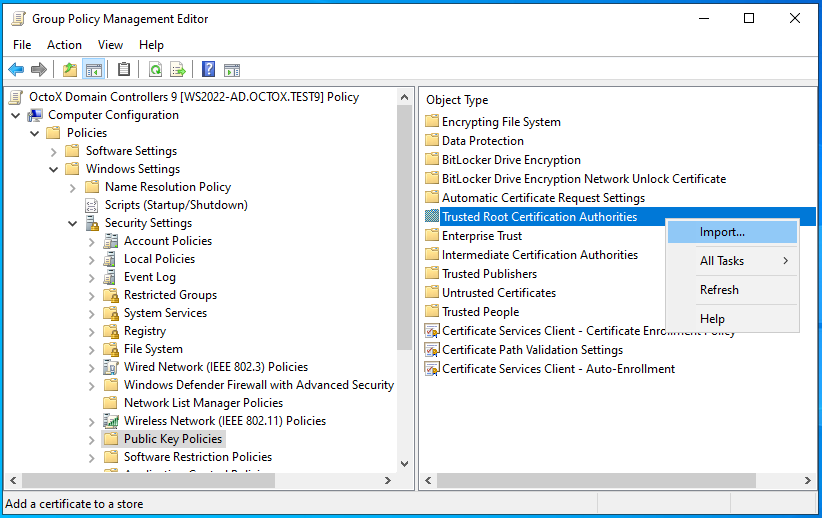
-
To import EE-GovCA2018 and EEGovCA2025 certificate: a. Right-click on folder
Trusted Root Certification Authoritiesand selectImport. b. Click Next, selectEE-GovCA2018orEE-GovCA2025certificate and import it.
-
To add intermediate certificate: a. Right-click on folder
Intermediate Certification Authoritiesand selectImport. b. Click Next, selectESTEID2018orESTEID2025certificate and import it.
As you can see in the previous illustrations, the certificates become visible in the Trusted Root Certification Authorities and Intermediate Certificate Authorities containers, respectively. With the next policy cycle, these settings will be applied to all domain controllers. Group Policy updates can be forced by running gpupdate /force on domain controllers. And as already said, in the same way the required certificates can be published to all other Windows workstations and servers, if necessary.
Configuring eID card properties in domain
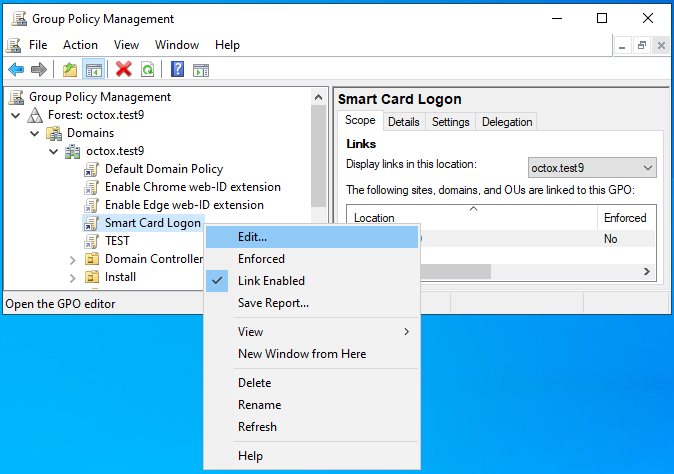
To support eID card domain logging centrally on all client computers, a domain-level policy is used in the following example:2
-
Open the Group Policy Management console and select the appropriate GPO to add properties, click Edit:
-
Select folder
Computer Configuration/Policies/Administrative Templates/Windows Components/Smart Cardand add following configuration:Allow certificates with no extended key usage certificate attribute= Enabled - to enable certificates withoutSmart Card Logonsetting in EKU;Allow ECC certificates to be used for logon and authentication= Enabled – to enable using certificates based on ECC cryptography for logon.
After these changes the policy should look like presented on the following picture:
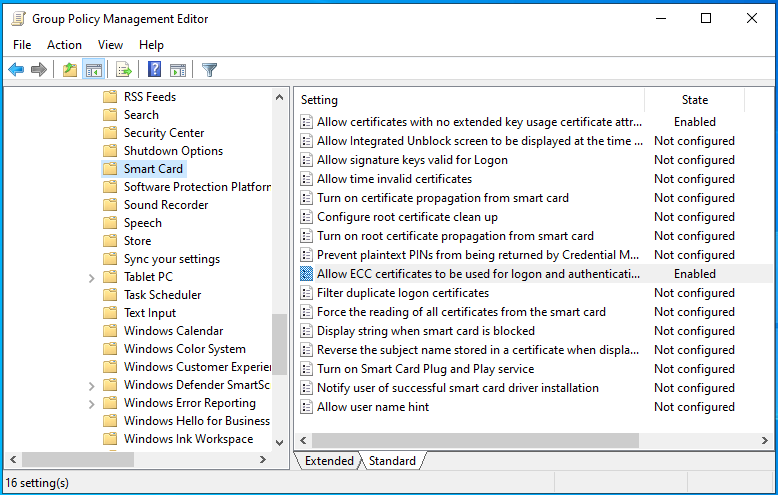
Supporting eID card domain logging in single computer
If you want to support eID card to log in from a non-domain, for example from home computer to any domain server over an RDP connection, you must configure the home computer to support eID cards. To do this, run the local policy manager gpedit.msc as an administrator on the computer. In the policy manager, the exact same change as described in the upper chapter (setting the properties of the eID card) must be made in the computer configuration, Allow certificates with no extended key usage certificate attribute and Allow ECC certificates to be used for logon and authentication must be enabled! After making the described change, you must wait for the policy to apply, update the policies with the gpupdate /force command, or restart the computer. Now it is possible to log into domain servers with an eID card, provided the domain and server support this feature.
Requiring OCSP revocation check
For eID cards currently in use, it is no longer necessary to describe the OCSP path centrally, as it is already included in the certificate. There is no CRL path in these certificates, so by default the certificate’s validity is checked only against the free access AIA OCSP service (http://aia.sk.ee/esteid2018, http://ocsp.eidpki.ee).
Note: If using OCSP, familiarize yourself with the concept of OCSP magic number also.3
Mapping users and certificates
Due to the Microsoft software updates described in article KB5014754, it is no longer recommended to use the AD GUI to associate a user with a certificate. With AD GUI the issuer and subject fields from user certificate are mapped to user. From now on, however, it is considered insecure. Recommended way is to map user account with issuer and serialnumber fields of the certificate.
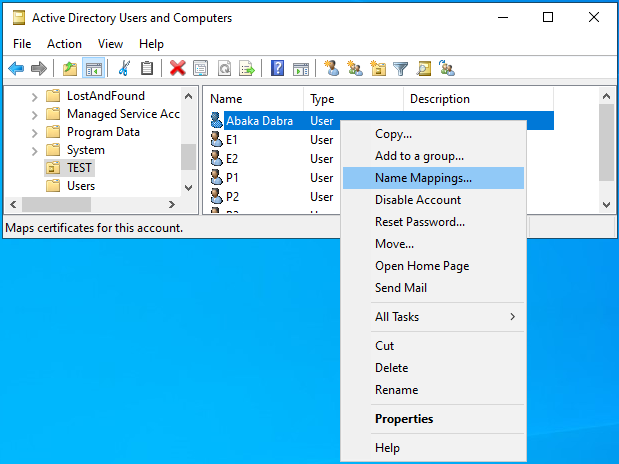
The following options are available for obtaining the content of the user’s certificate:
- Request a user certificate from the central LDAP directory using personal identification code. This can also be done using the DigiDoc4 Client.
- If the ID-card has been previously registered on the computer, the certificate can also be obtained from the user certificate store using MMC (
Certificatessnap-in,Personal/Certificates). - With the command
certutil.exe –scinfoif the eID card is in the reader. - …
It should be noted that eID cards have two certificates. To log into domain with eID card, the certificate with Client Authentication described under EKU must be used.
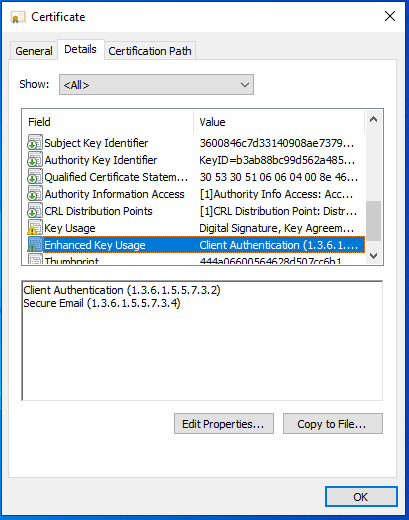
How to map user and authentication eID certificate
As already stated, using the AD GUI, the certificate is associated with the user using the issuer and subject fields, and this combination is no longer recommended by Microsoft. In addition, in the case of Estonian eID cards, the issuer field is identical at least on the ID-card and on the Digi-ID card.

So, it is probably reasonable to follow Microsoft’s recommendation and associate the certificate with the user using the issuer and serialnumber fields. This can be done via the ADSI Edit GUI.
It should be noted that both issuer and serialnumber strings must be reversed when pairing! This means that if:
-
Issuer is described in the certificate as:
CN = ESTEID2018 / 2.5.4.97 = NTREE-10747013 / O = SK ID Solutions AS / C = EE…in AD it must be:<I>C=EE,O=SK ID Solutions AS,OID.2.5.4.97=NTREE-10747013,CN=ESTEID2018 -
Serial number is described in the certificate as
8958ee38a565845e9107720de61ca64d, in AD it must be4da61ce60d7207915e8465a538ee5889. Please also pay attention to the fact that the reversal takes place two symbols at a time!
The correct user and certificate binding string in the ADSI Edit utility looks like this:4 X509:<I>C=EE,O=SK ID Solutions AS,OID.2.5.4.97=NTREE-10747013,CN=ESTEID2018<SR>4da61ce60d7207915e8465a538ee5889
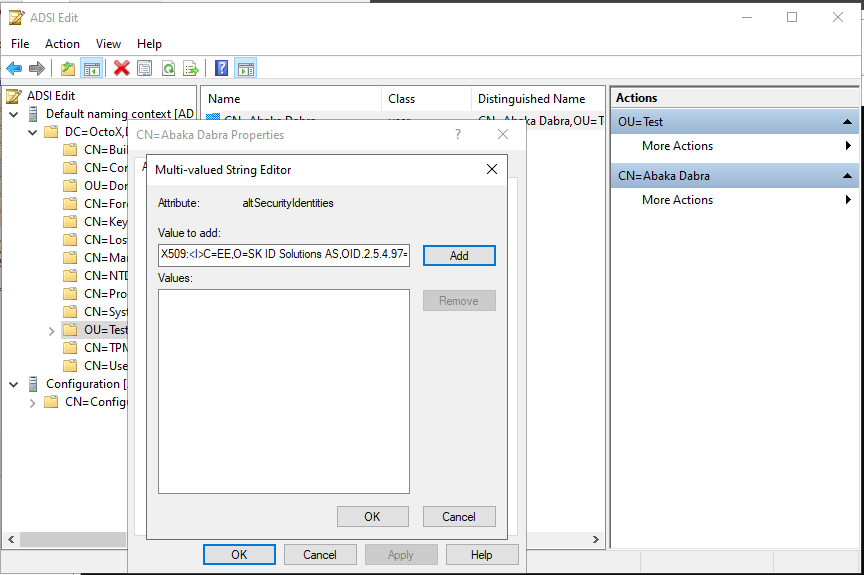

For larger environments and bigger number of users, you must definitely think about automating the previously described activities!
Preparing client computers
Software
The ID-software must be installed on client computers (the recommended version is 26.4.20.8412). In fact, the correct functioning of the eID card minidriver is also sufficient, but the entire ID-software is usually installed as standard.
Settings
All required configurations apply to client computers at the domain level with the predefined central policies described above.
Final implementation
To implement the eID login, just do it as it is described previously. Obvious prerequisites are:
- Testing the solution in a test and/or development environment;
- Implementation of the solution in the work environment;
- Training of administrators;
- Training of users.
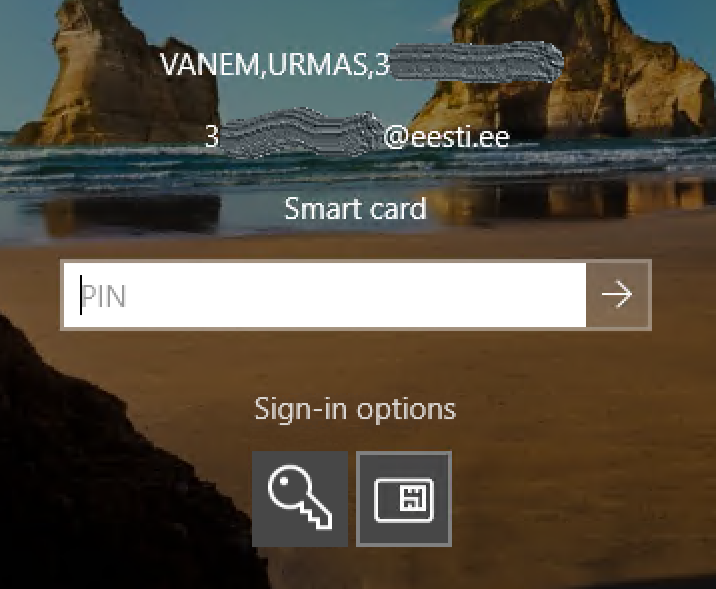
After the configuration takes effect on the client computer, the smart card  can be selected as the login method in the login window.
Requiring eID card for domain logging
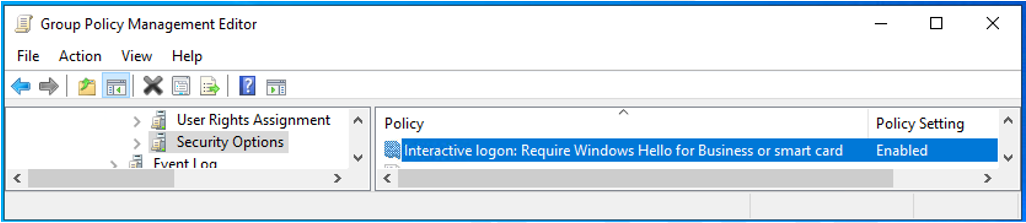
Sometimes it may be desirable to allow users to log in to systems only with an eID card (in other words, prohibiting the use of user passwords). This can be applied to common or specific workstations and/or RDP servers. To apply the requirement, the following policy must be applied to the desired computers: Computer Configuration / Policies / Windows Settings / Security Settings / Local Policies / Security Options Interactive logon: Require Windows Hello for Business or Smart Card = Enabled.

Controlling the behavior of the computer when the smart card is removed
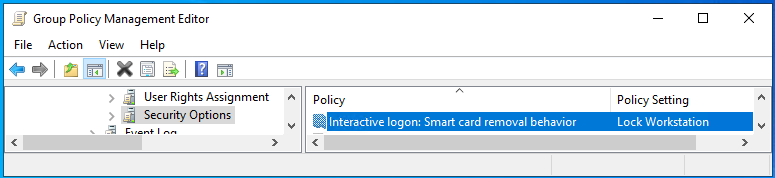
The behavior of a computer or a group of computers when the smart card is removed can also be configured. (This works only when a smart card is used for domain logon.) Options include:
- No Action (default);
- Lock Workstation;
- Force Logoff;
- Disconnect if a remote RDP session is active.
To apply the change, one of the above values must be set to the policy Computer Configuration / Policies / Windows Settings / Security Settings / Local Policies / Security Options Interactive logon: Smart card removal behavior.
Possible problems
Proxy
If the domain has a proxy configured to access external HTTP sites and this policy also applies to the domain controllers’ system account, the certificate will not be validated and the login will fail.
What to do: Create a proxy setup for your domain controllers. See netsh.exe options.
Same certificate is mapped to more than one user
If one authentication certificate is associated with more than one user in the domain, logging into domain with eID card will fail.
What to do: Remove the certificate association from the wrong user(s).
Summary
Domain login based on eID smartcards is a good way to simplify user domain logging process and increase system security at the same time.
In the users’ view, it is definitely a convenient feature to avoid forgetting the password - all you need to remember is the authorization PIN (which eID card users probably know anyway).
The experience of system administrators and support persons is also expected to be positive, as in addition to increased security, there are fewer password-related issues. Implementing this configuration is also relatively straightforward.
-
If both the intermediate and root level certificates have already been published in the domain using the previously described method, there is no direct need for republishing. The intermediate certificate can, however, be published by placing it in the domain NTAuthCertificates container and the root certificate with a normal domain policy, as described below. It’s actually a bit confusing, because although in theory Microsoft requires that the CA certificate that issued the card certificate belongs to the NTAuthCertificates container in the domain (check Guidelines for enabling smart card logon with third-party certification authorities), then in practice the login with the eID card works even if it hasn’t been done and the chain is simply trusted. Anyway, it is recommended to follow Microsoft’s technical requirements when creating eID login configuration. ↩
-
Of course, the policy can be applied from any level or group, for only client computers for example. ↩
-
If, as a rule, the issuer is a constant (across the chain), then the serialnumber must be changed for every user. Use this PowerShell function:
function Reverse-SerialNumber { param([string]$SerialNumber)
  $pairs = [regex]::Matches($SerialNumber, '..').Value;
  [array]::Reverse($pairs);
  return -join $pairs
}
Reverse-SerialNumber -SerialNumber "8958ee38a565845e9107720de61ca64d"
# Output: 4da61ce60d7207915e8465a538ee5889