Configuring IIS to support Estonian Digital ID-card for authentication
Version: 26.08/1
Published by: RIA
Version information
| Date | Version | Changes/Notes |
|---|---|---|
| 21.01.2019 | 19.01/1 | Public version, based on 18.12 software. |
| 12.02.2019 | 19.02/1 | Added OCSP options. — Changed by: Urmas Vanem |
| 01.10.2019 | 19.10/1 | Added information about Windows server (IIS) patches statuses and future availability by versions. — Changed by: Urmas Vanem |
| 18.10.2019 | 19.10/2 | Added information about Windows Server 2016 update KB4516061, which solves Chrome-IIS problem. — Changed by: Urmas Vanem |
| 08.11.2019 | 19.11/1 | Added information about Windows Server 2019 update KB4520062, which solves Chrome-IIS problem. — Changed by: Urmas Vanem |
| 14.11.2019 | 19.11/2 | Added information about Windows Server 1903 (SAC) update KB4524570, which solves Chrome-IIS problem. — Changed by: Urmas Vanem |
| 12.12.2019 | 19.12/1 | Added recommendations for securing IIS. — Changed by: Urmas Vanem |
| 14.12.2020 | 20.12/1 | Added security recommendations to block access for certificates issued by third sub-CA’s. — Changed by: Urmas Vanem |
| 17.12.2020 | 20.12/2 | Added some security recommendations to chapter “Denying access for unnecessary CA-s”. — Changed by: Urmas Vanem |
| 03.03.2021 | 21.03/1 | Removed deprecated info of IIS and Chrome combination and updated to the latest. — Changed by: Kristjan Vaikla |
| 30.04.2021 | 21.04/1 | Support for aged ESTEID-SK 2011 certificates removed. — Changed by: Urmas Vanem |
| 14.12.2021 | 21.12/1 | Server platform upgraded to version 2022. Added ECDSA certificate request procedure. TLS and cipher recommendations are updated. — Changed by: Urmas Vanem |
| 18.01.2022 | 22.01/1 | Added Windows Server 2022 and TLS 1.3 protocol related information, including procedure for enabling in-handshake authentication method to allow certificate-based authentication with TLS 1.3 protocol. — Changed by: Urmas Vanem |
| 18.12.2023 | 23.12/1 | Removed ESTEID-SK 2015 chain. — Changed by: Urmas Vanem |
| 31.10.2025 | 25.10/1 | Added Zetes certificates. — Changed by: Raul Kaidro |
| 22.04.2026 | 26.04/1 | Converted to Markdown format. — Changed by: Raul Metsma |
| 21.08.2026 | 26.08/1 | Updated the platform to Windows Server 2025 and revised certificate-key, TLS, cipher-suite, certificate-policy, and OCSP guidance based on the 2026 cryptographic algorithms life-cycle report. — Changed by: Raul Metsma |
Instructions on how to configure IIS to support Estonian eID cards for authentication.
- Configuring IIS to support Estonian Digital ID-card for authentication
Introduction
This guide describes how to configure Microsoft IIS web services to require two-way SSL. On the server side, any certificate with server authentication EKU trusted by clients can be used. On the client side, any Estonian eID card (ID-card, residence card, digital ID or e-Resident’s digital ID) can be used.
This guide targets Windows Server 2025; Windows 10 is used on the client side. Client certificates issued from the SK ID Solutions EE-GovCA2018 and Zetes EEGovCA2025 chains are supported. ID-software is also required on the client to recognize the smart-card certificate1. The server certificate in this example is issued by the OctoX test CA.
Different authentication methods are available in IIS. In this guide, IIS is configured in the simplest possible way and only anonymous authentication is used — after authentication, users can access the website as the dedicated (IUSR) user.
The configuration has been tested with the following browsers (latest versions):
- Microsoft Edge
- Mozilla Firefox
- Google Chrome
Configuration for one-way SSL/TLS
Configuring Windows Server certificate
IIS server needs a TLS certificate to offer web services securely. In this example, a certificate issued from OctoX test environment is used. Both clients and the web server itself must trust the certificate.
In a domain environment it can make sense to use an internal CA as web server certificate issuer. But if the security level is not good enough or when offering IIS services widely (for public services for example), it can be a good idea to get a certificate from any commonly trusted CA.
Requesting server certificate
Because using IIS management console for querying TLS certificate is quite limited, the certificates management console is used instead. Start mmc.exe on IIS server and add the Local Computer/Certificates snap-in into it. Then create a custom query:
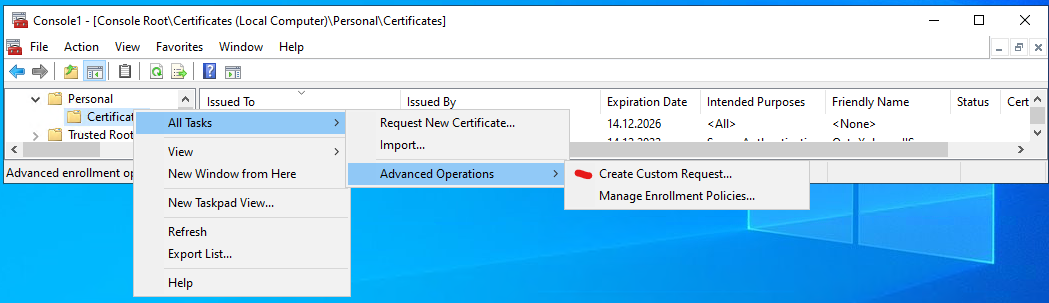
Click three times Next and then select Details, Properties. The certificate query custom request properties window appears:
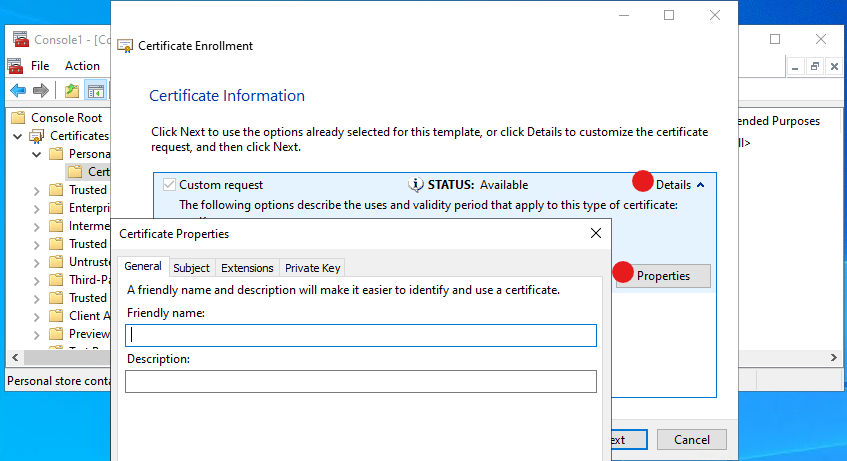
In the certificate query properties window, the exact properties desired in the new certificate can be set.
For similar queries performed more frequently, it is recommended to use PowerShell for automation.
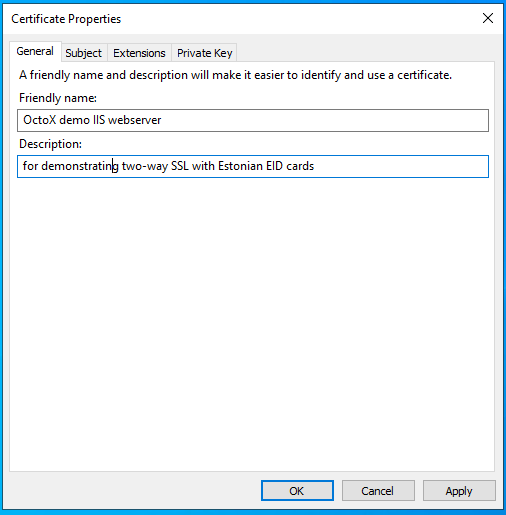
Tab General
Here the certificate friendly name and description can be set. These fields are not actually inner parts of the certificate but can be useful for later certificate selection and understanding what is what.
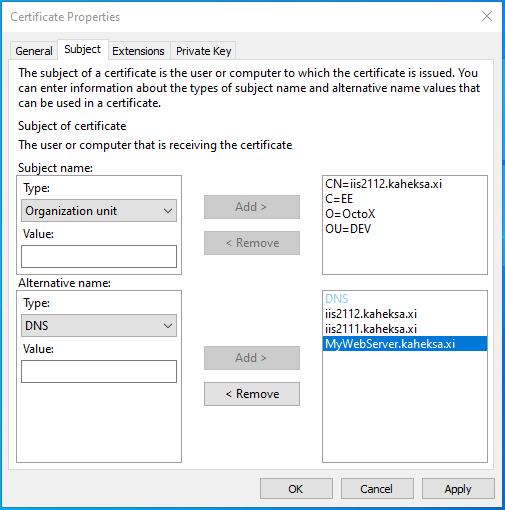
Tab Subject
The certificate subject is described here as usual. If different DNS aliases are needed, or the common name is not the FQDN for any reason, it is necessary to describe SAN DNS names in this tab too!
Tab Extensions
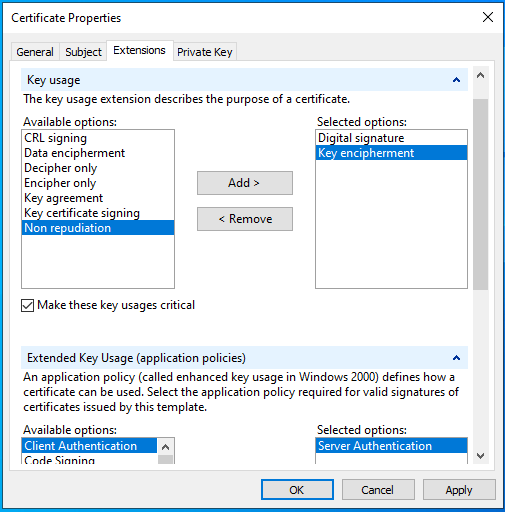
In the extensions tab, set the following options:
- Key Usage:
- Digital signature;
- Key encipherment.
- Extended Key Usage:
- Server Authentication.
Tab Private Key
Here, select the CSP (cryptographic service provider). In this example, unselect RSA and select ECDSA_P384.
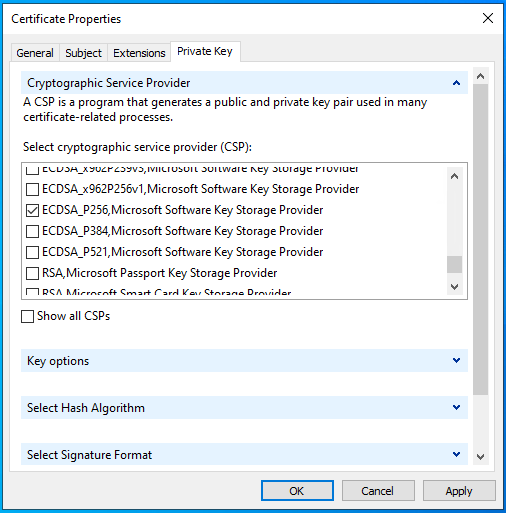
Generate a separate private key for every independent TLS server. Do not copy one key between servers merely because a wildcard or multi-SAN certificate could cover all their names. Keeping keys separate limits the impact of a server or key compromise.
For production deployments, use a hardware security module (HSM) or an equivalent non-exportable hardware-backed key provider where supported. Generate the key inside the device and keep it non-exportable. Confirm that the HSM provider, IIS, and certificate issuer support the selected ECDSA P-384 key before deployment. The software-provider workflow shown here is not an HSM setup.
Click OK and Next to save the request file with any name you like in Base64 format.
Inspect the request file with certutil:
certutil -dump iis2112.req
The relevant output should resemble the following; request-specific hashes and raw public-key bytes are omitted:
PKCS10 Certificate Request:
Version: 1
Subject:
    CN=iis2111.kaheksa.xi
    C=EE
    O=OctoX
    OU=DEV

Public Key Algorithm:
    Algorithm ObjectId: 1.2.840.10045.2.1 ECC
    Algorithm Parameters:
        1.3.132.0.34 ECDH_P384
Public Key Length: 384 bits

Subject Alternative Name
    DNS Name=iis2112.kaheksa.xi
    DNS Name=iis2111.kaheksa.xi
    DNS Name=MyWebServer.kaheksa.xi
Verify that the public key is 384 bits and that every required DNS name is present under Subject Alternative Name.
The query file must now be sent to any CA for certificate generation. If everything goes fine, the certificate will be returned.
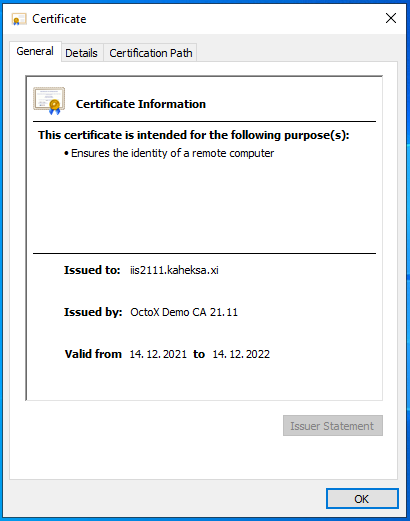
Installing certificate
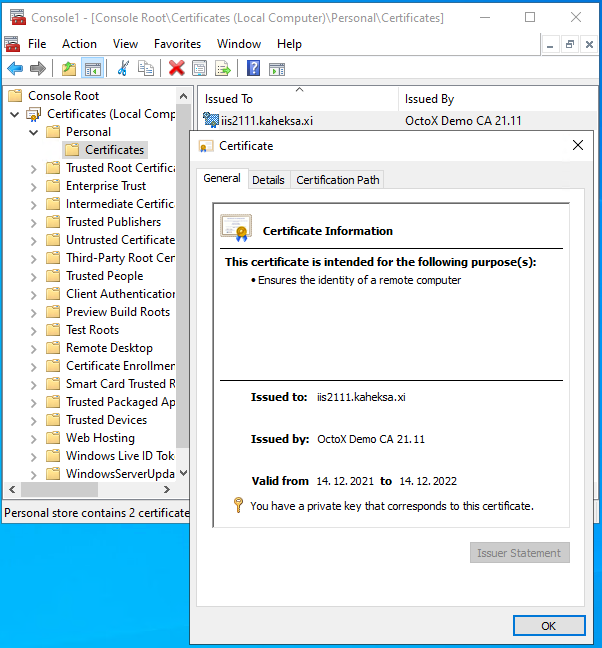
Issuing CA certificate OctoX Demo CA 21.11 must be trusted by the IIS server. It means it must be in the IIS server Trusted Root Certification Authorities container.2
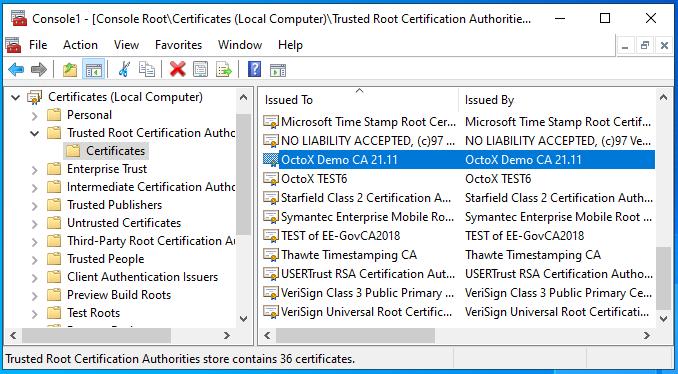
Certificate for IIS server must belong to Local Computer/Personal certificates container on IIS server.
Configuring IIS for one-way SSL
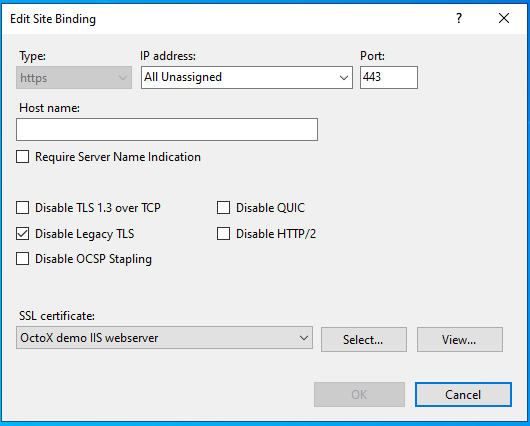
To configure one-way TLS on IIS, add an HTTPS binding (usually port 443), select the server certificate, and disable legacy TLS protocols.
The Windows Server 2025 binding dialog below shows the relevant controls. Select the server certificate, keep Disable Legacy TLS selected, and leave Disable TLS 1.3 over TCP unselected.
After applying settings, one-way SSL works and the website is accessible over HTTPS protocol.
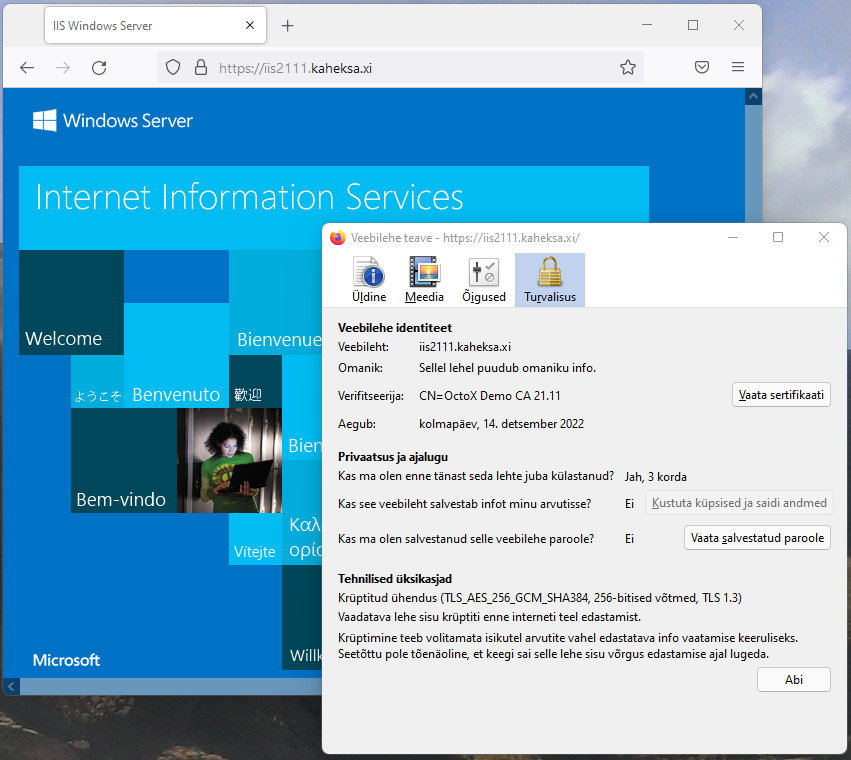
The Firefox information window shows that:
- Web server certificate
iis2111.kaheksa.xiis in use; - TLS protocol version 1.3 is in use.
Stapling the server-certificate OCSP response
If the server certificate contains an OCSP responder URI and its issuing CA supports OCSP, keep Disable OCSP Stapling unselected in the HTTPS binding. HTTP.sys can then obtain a signed status response for the server certificate and send it during the TLS handshake. This avoids each browser querying the issuing CA and improves client privacy.3
Display the binding and confirm that OCSP stapling is not disabled:
netsh http show sslcert 0.0.0.0:443
If required, enable stapling for the existing binding:
netsh http update sslcert ipport=0.0.0.0:443 disableocspstapling=disable
Do not enable stapling when the issuing CA does not provide an OCSP service. From a client with OpenSSL, verify the result with:
$ openssl s_client -connect iis2111.kaheksa.xi:443 \
    -servername iis2111.kaheksa.xi -status </dev/null
The output must contain a successful OCSP response and a good certificate status. Monitor retrieval errors and ensure HTTP.sys can reach the responder.
Disabling HTTP access
To disable access to the website over unsecure HTTP (usually port 80), the binding can be removed from configuration and firewall access to port 80 can be disabled. As an alternative, an automatic redirection rule can be created from port 80 to port 443. This can be useful for cases when users do not type the https:// prefix to the server address and cannot reach the website.
Requiring two-way SSL, certificate authentication
Preset
Note: TLS 1.3 with in-handshake client-certificate authentication is the recommended Windows Server 2025 configuration. In the HTTPS site binding, select Negotiate Client Certificate so that HTTP.sys requests the certificate during the initial TLS handshake. Leave Disable TLS 1.3 over TCP unselected. Microsoft describes this Server 2025 behavior in the IIS Support Blog4.
Compatibility: Windows Server 2022 does not expose the Negotiate Client Certificate option in IIS Manager. Use the legacy
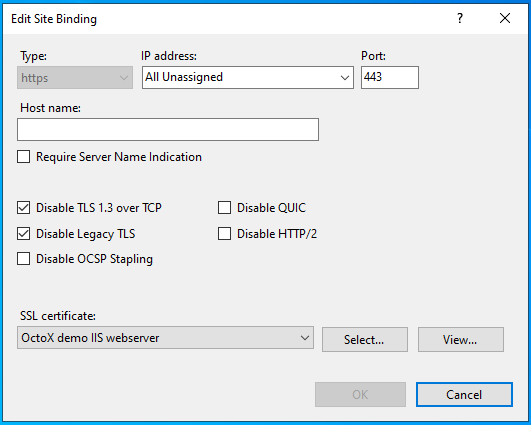
netshprocedure below when Server 2022 must be retained. Common browsers do not support the TLS 1.3 post-handshake client authentication used by default on this platform. Disable TLS 1.3 and use TLS 1.2 only as a documented exception when the application must request a client certificate after the initial TLS connection and its flow cannot be changed.
The following Windows Server 2025 screenshot shows the TLS 1.2 compatibility exception. Select the server certificate before saving the binding. This is not the recommended Windows Server 2025 configuration:
Configuring IIS server to support Estonian eID cards
To enable two-way SSL certificate authentication must be turned on. By default, all trusted certificates with client authentication extension in EKU can be used. Client certificate chain must be known by server, intermediate certificates must belong to intermediate certificates container and root certificates must belong to Trusted Root Certification Authorities container.
The following certificates must be added to the IIS server certificate store:
- Trusted Root Certification Authorities:
EE-GovCA2018(http://c.sk.ee/EE-GovCA2018.der.crt)EEGovCA2025(https://crt.eidpki.ee/EEGovCA2025.crt)
- Intermediate Certification Authorities5:
ESTEID2018(http://c.sk.ee/esteid2018.der.crt)ESTEID2025(https://crt.eidpki.ee/ESTEID2025.crt)
After defining certificate chains, the certificate requirement can be enabled in website SSL settings:
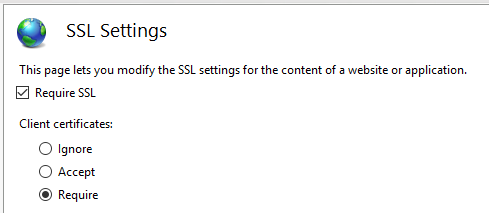
Described configuration allows access to website over port 443, client certificate is required. While connecting to server over https certificate request appears:
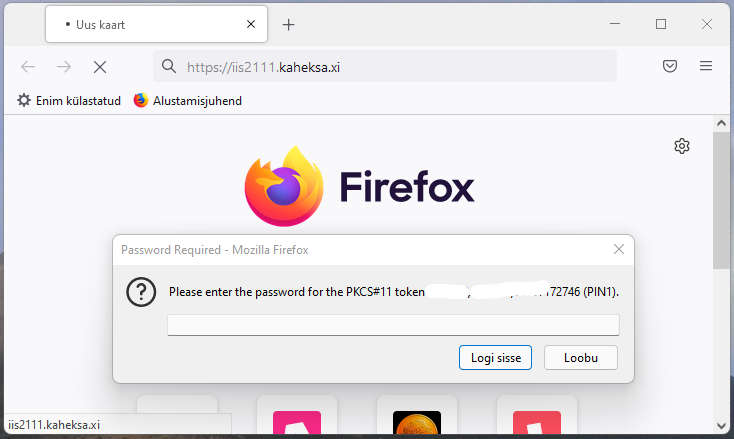
After entering PIN, certificate revocation status will be checked by IIS server and if it is good, user can access website.
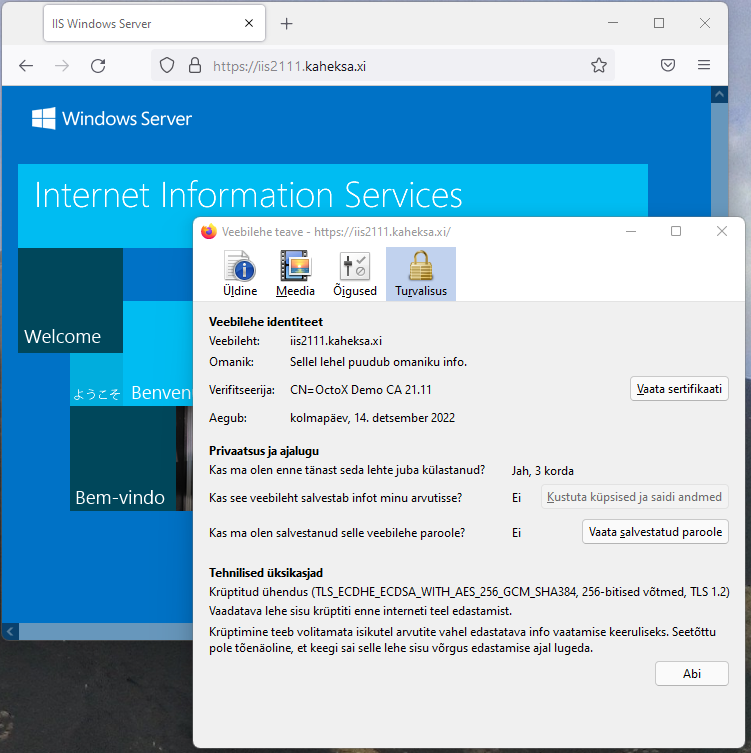
Before testing the recommended TLS 1.3 configuration, enable in-handshake authentication as described below.
As an alternative, certificate acceptance can be used instead of requiring it. In this case, websites can be accessed also with username or password or without authentication at all.
Enabling in-handshake authentication method
With in-handshake authentication, the server requests the client certificate during the initial TLS handshake. This is required because TLS 1.3 does not support renegotiation.
Windows Server 2025
- In IIS Manager, select the website and open Bindings.
- Select the HTTPS binding and choose Edit.
- Select Negotiate Client Certificate.
- Leave Disable TLS 1.3 over TCP unselected and save the binding.
- If verification is needed, run
netsh http show sslcertand confirm thatNegotiate Client Certificateis enabled for the binding.
Windows Server 2022 compatibility
Windows Server 2022 does not provide the binding checkbox. For this legacy platform only, enable client-certificate negotiation with netsh:
-
Display the binding configuration:
netsh http show sslcert 0.0.0.0:443Record the hash and application ID. Before the change, the relevant output resembles:
Certificate Hash : <CERTIFICATE_HASH> Application ID : {<APPLICATION_ID>} Negotiate Client Certificate : Disabled -
Remove the certificate binding from port 443:
netsh http del sslcert 0.0.0.0:443The command should report
SSL Certificate successfully deleted. -
Bind the certificate to port 443 again and enable in-handshake client-certificate authentication:
netsh http add sslcert ipport=0.0.0.0:443 ^
    certhash=<CERTIFICATE_HASH> ^
    appid={<APPLICATION_ID>} ^
    certstorename=MY ^
    clientcertnegotiation=Enable
Replace
CERTIFICATE_HASHandAPPLICATION_IDwith the values from step 1. The command should reportSSL Certificate successfully added.
Run the show sslcert command from step 1 again. The relevant output should now be:
Negotiate Client Certificate : Enabled
Note: Because session renegotiation is disabled with
TLS 1.3, it must be understood that authentication must happen on the first page. If a one-way SSL connection already exists with any website, renegotiation will fail if some parts of this site/page require it. So, if necessary, this landing problem must be solved.
Authentication
In this configuration, only anonymous authentication is used:
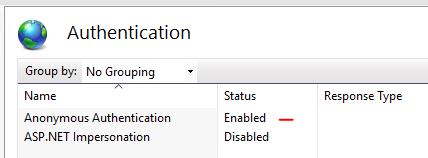
Possible additional configurations
The purpose of this document is not to give exact guidance on how to configure or secure websites. This section introduces useful configurations for using two-way SSL with Estonian eID cards. The following sections cover options worth considering.
Filtering certificates displayed to the client
By default, the client can display every personal certificate that has a private key and a client-authentication EKU. IIS can send a list of acceptable certificate authorities so that the client displays certificates from the supported chains.
This issuer list improves certificate selection but does not prove that the selected leaf certificate is an ID-card authentication certificate. Different certificate products can share a root or intermediate CA. Enforce the certificate-policy check described in the next section before accepting the authenticated identity.
The goal is to support only certificates issued from chains under root CA EE-GovCA2018 and EEGovCA2025.
-
Display the current binding configuration:
netsh http show sslcert 0.0.0.0:443Record the hash and application ID. Before the change, the relevant output resembles:
Certificate Hash : <CERTIFICATE_HASH> Application ID : {<APPLICATION_ID>} Ctl Store Name : (null) -
Remove the certificate binding:
netsh http del sslcert 0.0.0.0:443The command should report
SSL Certificate successfully deleted. -
Add the certificate again and use the
Client Authentication Issuersstore as the list of acceptable certification authorities:netsh http add sslcert ipport=0.0.0.0:443 ^ certhash=<CERTIFICATE_HASH> ^ appid={<APPLICATION_ID>} ^ sslctlstorename=ClientAuthIssuerReplace
CERTIFICATE_HASHandAPPLICATION_IDwith the values from step 1. The command should reportSSL Certificate successfully added. -
Run the
show sslcertcommand from step 1 again and confirm the relevant output:Ctl Store Name : ClientAuthIssuerThe IIS configuration can also be checked to confirm the SSL certificate is correctly bound to port 443.
-
Enable certificate filtering option in IIS server registry by adding value
HKEY_LOCAL_MACHINE\SYSTEM\CurrentControlSet\Control\SecurityProviders\SCHANNEL\SendTrustedIssuerList=1: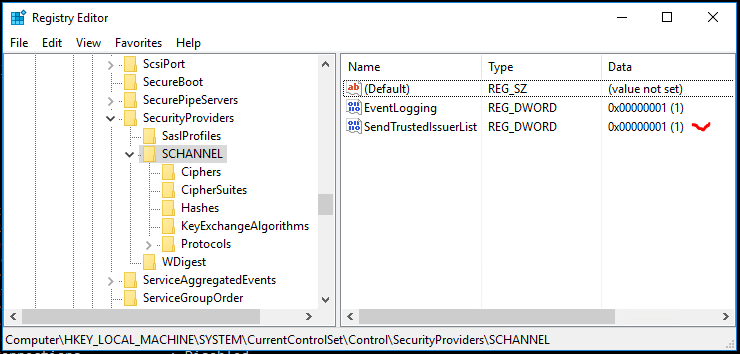
-
Add the intermediate CA to certificates container
Client Authentication Issuersin IIS server to support only specific CA: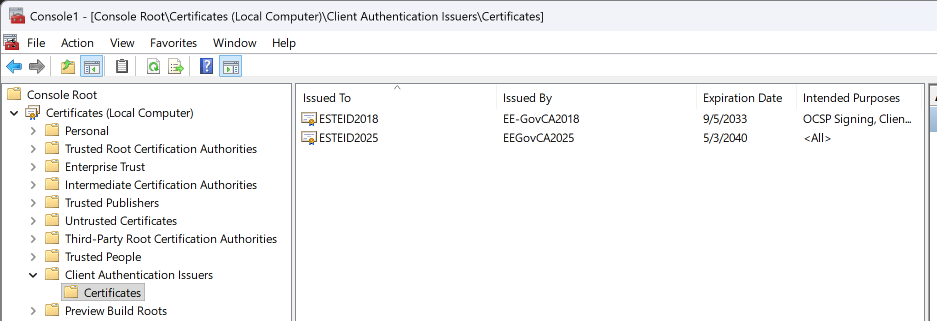
-
If necessary, restart the IIS service or server and check if everything works as expected.
Validating the ID-card certificate policy
Before accepting an authenticated identity, require all of the following:
- HTTP.sys successfully validates the complete certificate chain;
- the issuer is an explicitly allowed intermediate CA;
extendedKeyUsagepermits TLS web-client authentication;- the leaf certificate’s
X509v3 CertificatePoliciesextension (2.5.29.32) contains both the NCP+ authentication-policy OID and an allowed document-policy OID for the certificate’s CA generation.6
For production certificates covered by this guide, use this allowlist:
# Required in every accepted authentication certificate
0.4.0.2042.1.2

# ESTEID2018 - require one of these document-policy OIDs
1.3.6.1.4.1.51361.1.1.1
1.3.6.1.4.1.51361.1.1.2
1.3.6.1.4.1.51361.1.1.3
1.3.6.1.4.1.51361.1.1.4
1.3.6.1.4.1.51361.1.1.5
1.3.6.1.4.1.51361.1.1.6
1.3.6.1.4.1.51361.1.1.7
1.3.6.1.4.1.51455.1.1.1

# ESTEID2025 - require one of these document-policy OIDs
1.3.6.1.4.1.51361.2.1.1
1.3.6.1.4.1.51361.2.1.2
1.3.6.1.4.1.51361.2.1.3
1.3.6.1.4.1.51361.2.1.4
1.3.6.1.4.1.51361.2.1.5
1.3.6.1.4.1.51361.2.1.6
1.3.6.1.4.1.51455.2.1.1
Correlate the document-policy OID with the validated issuer: an ESTEID2018 certificate must not be accepted using an ESTEID2025 policy OID, or vice versa. The common NCP+ OID is not product-specific and is insufficient on its own. Do not add test OIDs, such as Zetes OIDs prefixed with 2.999, to a production allowlist.
The Client Authentication Issuers store and the EKU check are useful defence in depth, but they do not identify the certificate product. The IIS application or an authentication gateway must inspect the verified client certificate and reject authentication unless both the NCP+ OID and a document-policy OID matching the issuer are present. Do not infer the certificate product from its subject, issuer, or EKU alone, and do not treat the anyPolicy OID (2.5.29.32.0) as proof of an ID-card policy.
Use the application platform’s native client-certificate API. In a .NET application, validate the certificate with X509ChainPolicy.CertificatePolicy.7 Evaluate each permitted, issuer-matched combination separately: require the NCP+ OID and one allowed document-policy OID from the corresponding CA generation in the same chain validation. The document-policy OIDs are alternatives; do not add every allowed document-policy OID to one validation as simultaneously required policies.
Do not accept a certificate supplied in an HTTP request header unless a trusted reverse proxy overwrites that header and the application is reachable exclusively through that proxy.
To inspect an exported certificate during testing, use:
certutil -dump client.cer
Check the Certificate Policies extension against the current policy and certificate-profile sources cited above. Test at least one accepted ID-card certificate and certificates for other products issued in related hierarchies, including Mobile-ID where applicable.
Checking client-certificate revocation with OCSP
Certificates issued under the ESTEID2018 and ESTEID2025 CAs contain their AIA OCSP service address (http://aia.sk.ee/esteid2018 and http://ocsp.eidpki.ee). HTTP.sys uses the Windows certificate-chain engine to retrieve revocation information from the locations in the certificate.
Display the HTTPS binding:
netsh http show sslcert 0.0.0.0:443
Confirm that client-certificate revocation checking and certificate usage checking are enabled, and that revocation checking is not restricted to cached data. If necessary, update those policies:3
netsh http update sslcert ipport=0.0.0.0:443 ^
    verifyclientcertrevocation=enable ^
    verifyrevocationwithcachedclientcertonly=disable ^
    usagecheck=enable
Allow outbound access to the revocation endpoints, monitor Windows CAPI2 and HTTP Service errors, and test both valid and revoked certificates. Define and test the application’s behaviour when revocation information is temporarily unavailable. Do not use the obsolete OCSP query-count registry policy to force OCSP over CRL; let the current chain engine use the revocation data published in each certificate.
Recommended security settings for IIS
SSL/TLS
Do not rely on the IIS or Schannel defaults to select TLS protocol versions. Disable TLS 1.0 and TLS 1.1. New and updated deployments should enable only TLS 1.3 by default.
Add TLS 1.2 only as a documented exception when the service must support clients from 2020 or earlier, or when a client certificate must be requested after the initial TLS connection has been established. Certificate authentication alone is not a reason to enable TLS 1.2. On Windows Server 2025, use the Negotiate Client Certificate binding option described above.
The report recommends disabling renegotiation when TLS 1.2 is enabled. A legacy design that requests a client certificate only after the initial handshake cannot both retain that flow and follow this recommendation. Prefer in-handshake authentication on a dedicated binding or hostname, and document any remaining TLS 1.2 renegotiation dependency as an exception.
When Schannel and deployed clients provide production support, prioritize the hybrid X25519MLKEM768 group. This guide does not prescribe a registry or Group Policy value for it because support and the standardized identifier are platform-dependent. Confirm the negotiated group with a current TLS scanner before relying on it.
More information about the recommendations for the use of the TLS protocol can be found in the cryptographic algorithms life cycle reports ordered by RIA at https://www.id.ee/en/article/cryptographic-algorithms-life-cycle-reports-2/.
Manage TLS protocols through Group Policy or another Windows management tool. The following registry values can be used to verify the applied configuration or when central management is unavailable. To disable TLS 1.0 and TLS 1.1, set8:
HKEY_LOCAL_MACHINE\SYSTEM\CurrentControlSet\Control\SecurityProviders\SCHANNEL\Protocols\9:TLS 1.0\ServerEnabled DWORD:0DisabledByDefault = DWORD:1
TLS 1.1\ServerEnabled DWORD:0DisabledByDefault = DWORD:1
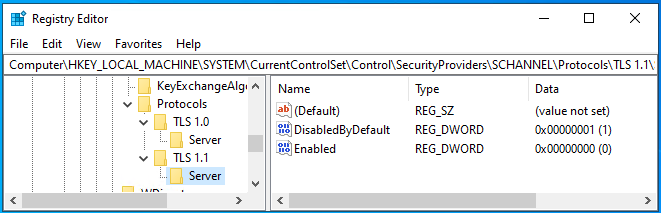
For a TLS 1.3-only server, TLS 1.2 can also be disabled under TLS 1.2\Server by setting Enabled DWORD:0 and DisabledByDefault DWORD:1. This system-wide change affects all Schannel server applications, so check other services before applying it and restart them afterwards. Do not disable TLS 1.2 when a documented compatibility exception applies.
Compression
Keep TLS compression disabled. HTTP compression in IIS is a separate feature: disable dynamic-content compression for applications whose responses combine attacker-controlled input with secrets. If HTTP response compression must remain enabled, the application must prevent cross-site request forgery and mitigate response-length leakage. Verify the TLS result with a current scanner because IIS does not expose TLS compression as a normal site-level setting.
Cipher suites
Configure an explicit allowlist through Group Policy or the Windows TLS PowerShell cmdlets. First check the suites supported by the installed operating-system version with Get-TlsCipherSuite10.
For the recommended TLS 1.3-only profile on Windows Server 2025, enable these suites in order. Schannel supports all three; ChaCha20-Poly1305 is supported but is not enabled by default:
TLS_AES_256_GCM_SHA384,TLS_CHACHA20_POLY1305_SHA256,TLS_AES_128_GCM_SHA256
For a documented TLS 1.2 compatibility exception, append the two ECDSA TLS 1.2 suites supported by Windows Server 2025. This matches the ECDSA-only certificate profile used in this guide:
TLS_AES_256_GCM_SHA384,TLS_CHACHA20_POLY1305_SHA256,TLS_AES_128_GCM_SHA256,TLS_ECDHE_ECDSA_WITH_AES_128_GCM_SHA256,TLS_ECDHE_ECDSA_WITH_AES_256_GCM_SHA384
The report also permits ECDHE-ECDSA with ChaCha20-Poly1305 for TLS 1.2, but Windows Server 2025 Schannel does not provide that suite. It also permits RSA-authenticated suites, but this ECDSA-only profile omits them. TLS_AES_128_CCM_SHA256 is only a fallback when AES-GCM and ChaCha20-Poly1305 are unavailable and is not part of this Windows Server profile. Do not enable RSA authentication or key exchange, DHE fallback, CBC, CCM_8, or other non-AEAD suites.
Enter the appropriate comma-separated allowlist under SSL Cipher Suite Order. The policy is located at:
- Local Group Policy Editor: Computer Configuration → Administrative Templates → Network → SSL Configuration Settings → SSL Cipher Suite Order.
- Domain Group Policy Management: Computer Configuration → Policies → Administrative Templates → Network → SSL Configuration Settings → SSL Cipher Suite Order.
The policy stores its Functions value at:
HKLM\SOFTWARE\Policies\Microsoft\Cryptography\Configuration\SSL\00010002
After applying the policy, list the effective cipher suites in priority order:
Get-TlsCipherSuite
The command displays one record per suite; check its Name field. To verify the raw value delivered by policy, run:
Get-ItemPropertyValue `
    -Path 'HKLM:\SOFTWARE\Policies\Microsoft\Cryptography\Configuration\SSL\00010002' `
    -Name Functions
Other configurable Schannel settings
Other Schannel settings are located under:
HKLM\SYSTEM\CurrentControlSet\Control\SecurityProviders\SCHANNEL
Only create values documented for the installed Windows Server version. The presence of an algorithm name in the registry does not by itself show whether that algorithm is enabled or used.
Additional possibilities
In addition to TLS and cipher suite configuration, there are many other things that can be done to secure the server:
- Keep operating system up to date.
- Disable presenting server information.
- Disable HTTP requests.
- Disable directory listing.
- Run under separate non-system and non-administrator accounts.
- Enable HSTS.
- …
Please take the list above as a short demo recommendations list. Of course, it makes sense to follow the recommendations, but there can be much more you can do to secure your server:
https://www.google.com/search?q=how+to+secure+IIS+server
-
If certificate is issued by intermediate CA, it must be in
Intermediate Certification Authoritiescontainer. In this case root CA certificate for intermediate CA must be inTrusted Root Certification Authoritiescontainer. ↩ -
https://learn.microsoft.com/en-us/windows-server/administration/windows-commands/netsh-http ↩ ↩2
-
https://techcommunity.microsoft.com/blog/iis-support-blog/addressing-tls-1-3-compatibility-issues-in-iis-express-on-windows-11/4449362/ ↩
-
To support EID cards issued for organizations by SK ID Solutions,
EID-SK 2016(https://www.sk.ee/upload/files/EID-SK_2016.der.crt) certificates must also be added to the list! ↩ -
The allowlist is based on the ESTEID2018 certificate policy v4.0 and the ESTEID2025 certificate policy v2.0, supplemented by the Zetes certificate profiles. Check the Zetes repository and the service providers’ current policies and profiles before changing the production allowlist. ↩
-
https://learn.microsoft.com/en-us/dotnet/api/system.security.cryptography.x509certificates.x509chainpolicy.certificatepolicy?view=net-9.0 ↩
-
These entries do not exist in the registry by default. ↩
-
It is also possible to configure the client part for SSL/TLS versions, but this guide covers server configuration. It does not mean that configuring the client part is not recommended, it just depends. ↩
-
https://learn.microsoft.com/en-us/windows/win32/secauthn/tls-cipher-suites-in-windows-server-2025 ↩